6. Train Model
Training your model process uses machine learning to teach the model to recognize different vegetation types based on your ground-truth points.
Model Training Overview
Training a classification model is a critical step in generating accurate classification results using TytonAI. The Train Model workflow wizard allows you to fine-tune an existing model or train one from scratch using your labeled training data. This process uses powerful AI infrastructure (MLaaS) and TytonAI's MegaModel backbone to deliver high-performing, custom vegetation and erosion classifiers.
Key Considerations
Before starting the training process, it's important to understand that model training:
- Training consumes significant computational resources.
- Incurs cloud computing costs (based on the number of epochs/area).
- Fine-tuning an existing model is more cost- and time-efficient than training from scratch.
Model Training Overview
The Train Model workflow enables you to:
- Fine-tune a Mega Model using your project data
- Evaluate model performance using accuracy assessment points
- Iteratively improve results by refining training data
⚠️ Key Considerations
- Training consumes computational resources
- Costs are based on the number of epochs
- Fine-tuning is the most efficient approach
- Model performance depends heavily on your training and assessment data
Training Workflow
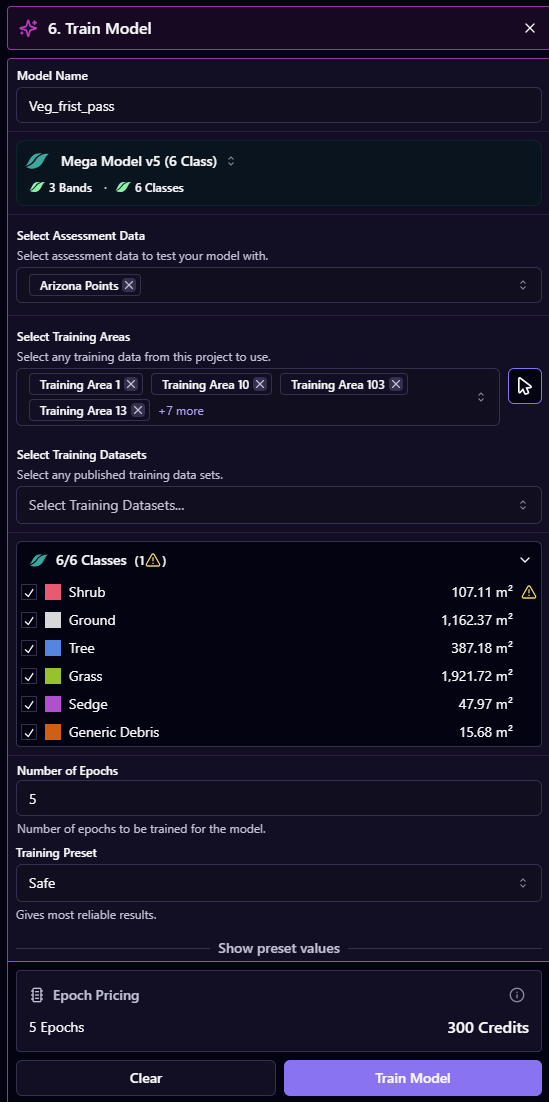
1. Configure Your Model
-
Model Name
Enter a clear, descriptive name for your model -
Select Model
Choose a TytonAI Mega Model to use as the foundation for training
2. Select Input Data
-
Assessment Data
Select your accuracy assessment points
These act as your ground truth for evaluating model performance -
Training Areas
Select areas containing your labelled training data -
Training Datasets (Optional)
Include published datasets from other projects if required
3. Review and Select Classes
TytonAI will display all classes identified within your selected training areas.
You can:
- Select which classes to include
- Review how much data exists per class
- Identify gaps or imbalances
At least one class must be selected to proceed.
4. Configure Training Settings
-
Number of Epochs
The number of times the model passes over your training data
(Default: 5) -
Training Preset
Choose a preset such as Safe for reliable results
5. Review Epoch Pricing
- Training cost is displayed at the bottom of the panel
- Cost increases with the number of epochs selected
6. Train Your Model
Click Train Model to begin.
This will:
- Start a training workflow
- Display progress in Job History
Evaluating Model Performance
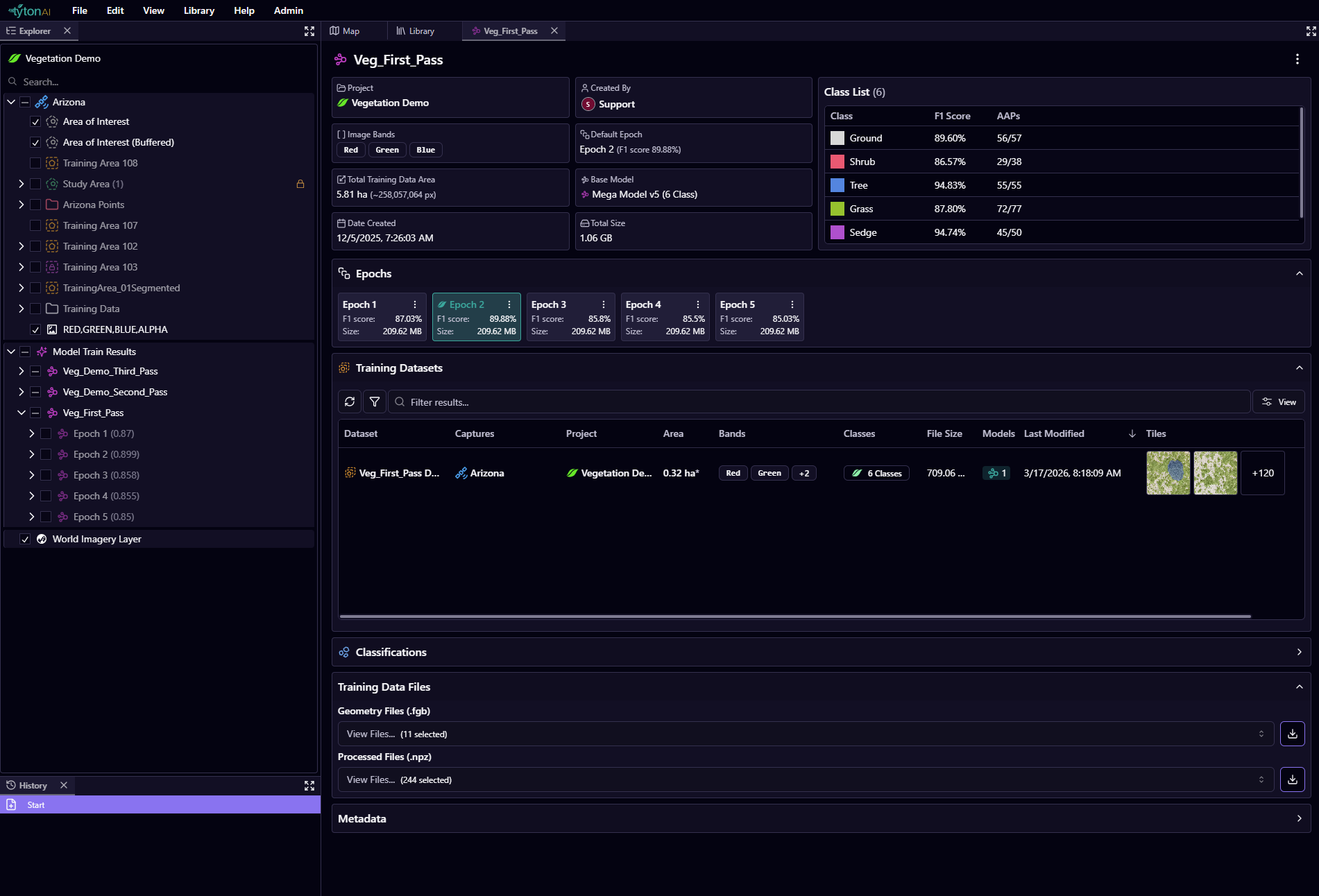
- Your model appears in the Explorer under Model Train Results
- Selecting the model shows summary performance
- Full details are available in Library → Models
Best Epoch Selection
- The epoch with the highest F1 score is highlighted
- This represents your best-performing model
Confusion Matrix
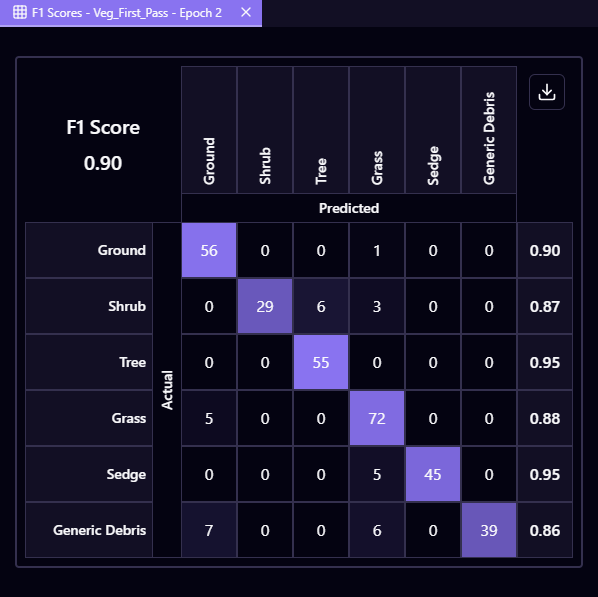
The confusion matrix shows how your model’s predictions compare to the actual classes.
-
Rows = actual classes
-
Columns = predicted classes
-
Values on the diagonal = correct predictions
-
Values off the diagonal = mistakes
A strong model will have most values along the diagonal.
- F1 Score summarises overall performance (closer to 1 = better)
- Per-class scores show which classes perform well or need improvement
Use this to identify where your model is getting confused and where more training data may be needed.
Visual Validation on the Map
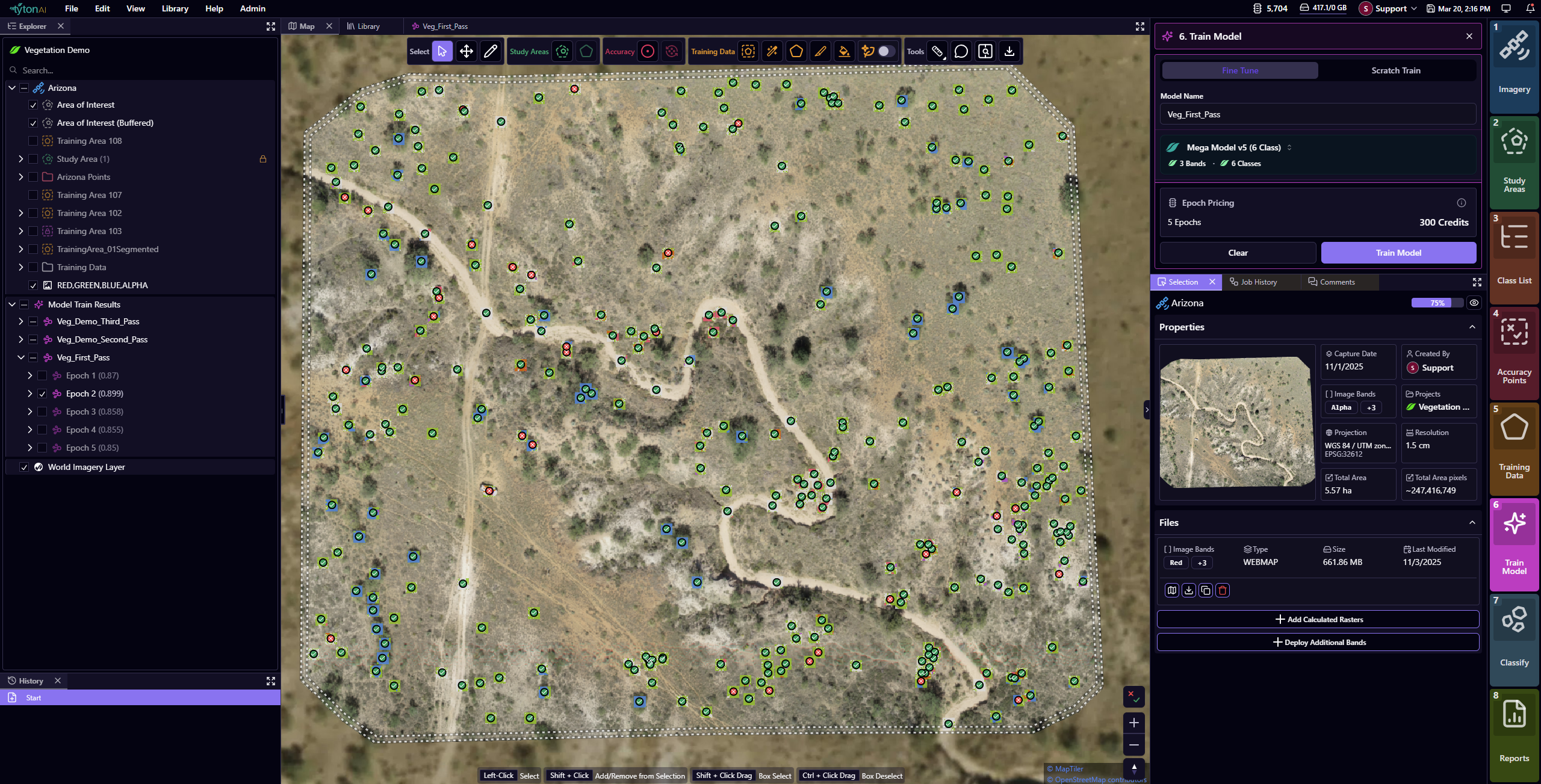
Select an epoch to review results spatially:
- Each accuracy assessment point displays a classification tile
- Green tick → correct classification
- Red cross → mismatch
Understanding Results & Improving Your Model
When a point is incorrect:
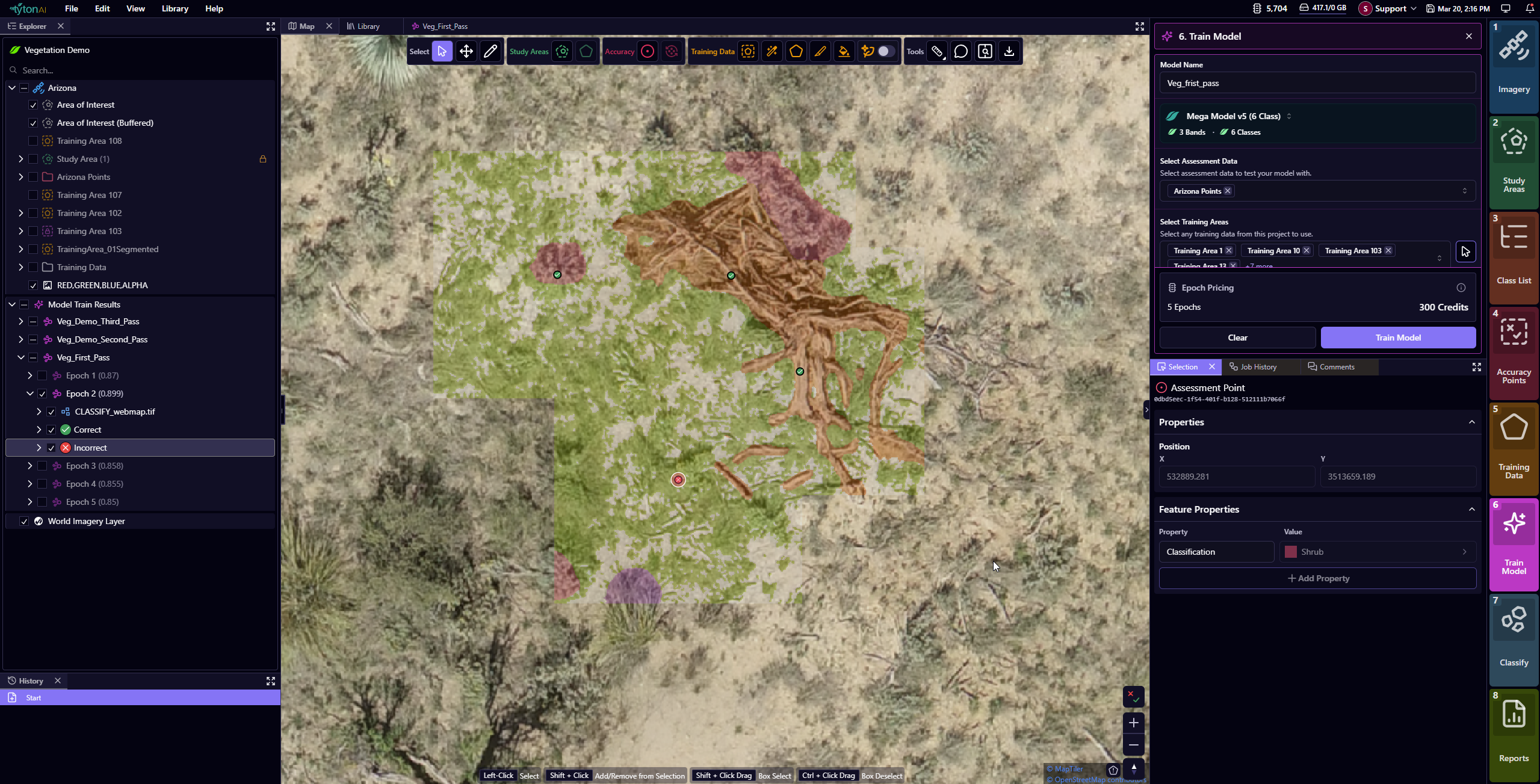
- The assessment point may be incorrectly placed on a speific class
- The model may be incorrect at classifying a class
To improve performance:
- Review incorrect assessment points on the map
- Refine or correct training areas
- Add more training data where needed
- Improve class balance
Model training is an iterative process — refinement leads to better results.
For optimal model performance:
- Ensure good distribution of accuracy points across your study area.
- Include examples of each vegetation type in different landforms.
- Consider seasonal variations in vegetation appearance.
- Include examples of vegetation at different growth stages.
To optimize cloud computing costs:
- Plan your training data carefully before starting.
- Combine multiple areas into a single training run.
- Use fine-tuning instead of training from scratch.
- Consider sharing trained models across similar projects.